
Mastering Hybrid Meetings with Microsoft Teams and Google Meet
Hybrid meetings are now the default for most teams — and honestly, they’re still a mess for a lot of organizations. Half the room can’t hear the remote participants, the screen share freezes, and someone is always on the wrong platform. Sound familiar?
This guide is for IT managers, business owners, and team leads in Uganda who want to run hybrid meetings that actually work — not just ones that technically happen.
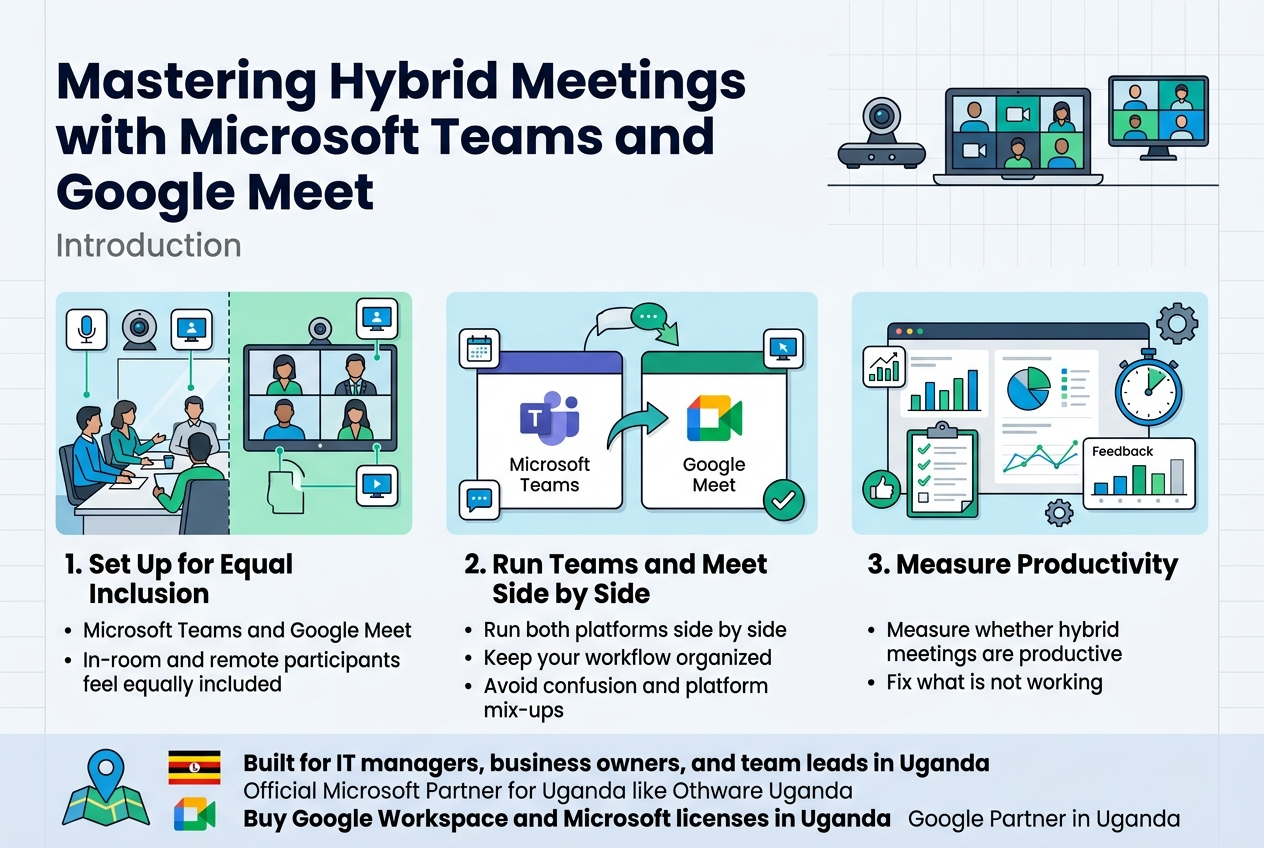
Here’s what we’ll walk through:
- How to set up Microsoft Teams and Google Meet so your in-room and remote participants feel equally included
- How to run both platforms side by side without your workflow turning into chaos
- Simple ways to measure whether your hybrid meetings are actually productive — and fix what isn’t
If your organization is already working with an Official Microsoft Partner for Uganda like Othware Uganda or looking to buy Google Workspace and Microsoft licenses in Uganda, you’re in a good position to implement everything covered here. Othware Uganda also works as a Google Partner in Uganda, so whether your team runs on Google Meet, Microsoft Teams, or both, the practical tips ahead apply directly to your setup.
Let’s get into it.
Understanding the Hybrid Meeting Landscape
Define Hybrid Meetings and Why They Matter Today
The world of work has changed dramatically, and there is no going back to the way things were. Right now, teams across every industry are splitting their time between physical offices and remote locations — sometimes on the same day. Some people dial in from a coffee shop in Kampala, others sit in a boardroom in Nairobi, and a few more join from home offices scattered across time zones. This is the hybrid meeting reality, and it is not a temporary phase. It is how modern work actually gets done.
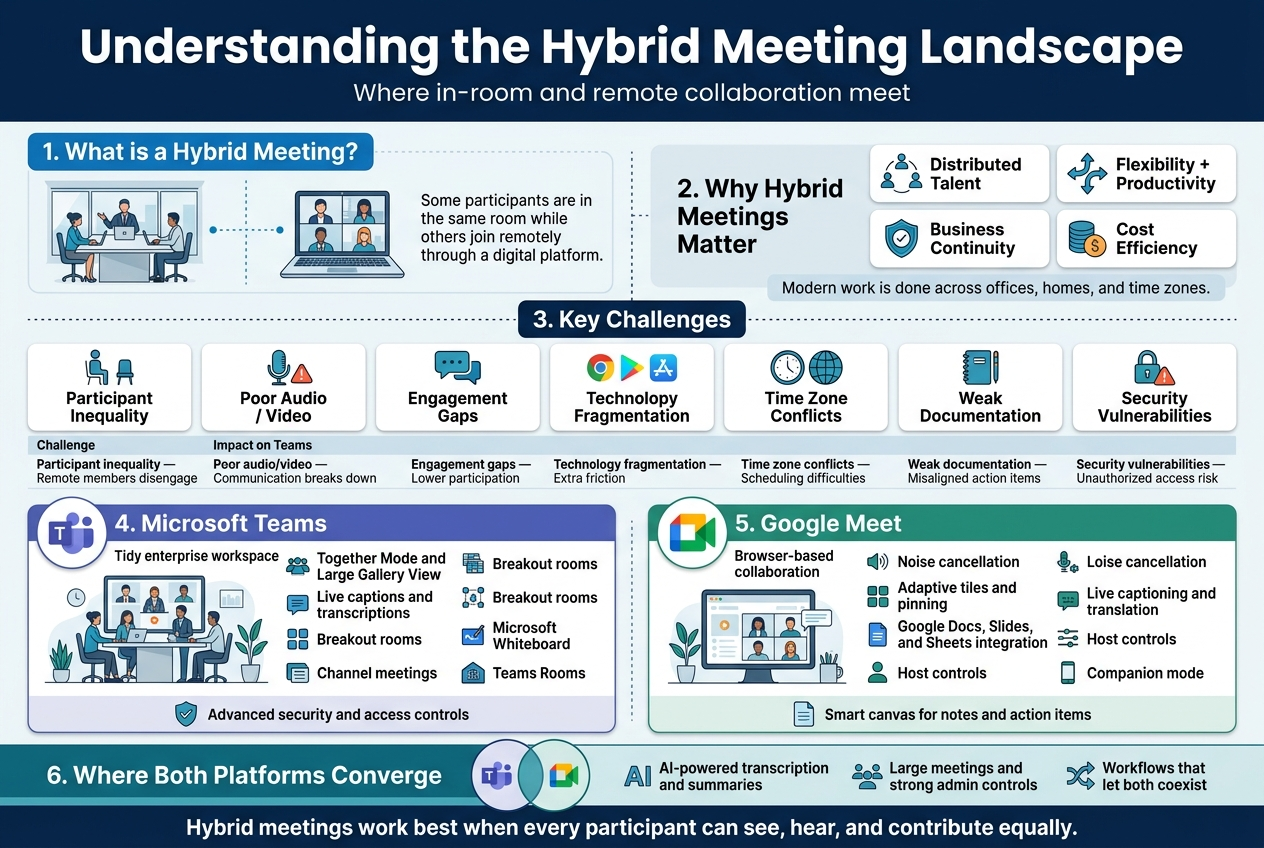
A hybrid meeting is any meeting where some participants are physically in the same room while others join remotely through a digital platform. That sounds simple enough, but the actual experience is anything but simple. It requires thoughtful coordination of technology, communication norms, and organizational culture to make sure everyone — whether sitting three feet from the projector or joining from a laptop halfway across the country — gets an equal shot at contributing, being heard, and walking away with clarity.
Why do hybrid meetings matter so much right now? A few reasons stand out:
-
Talent is distributed. Organizations no longer hire only from their immediate geography. A company in Kampala might have team members in Nairobi, Lagos, London, and Dubai all working together on the same project. Hybrid meetings are how these teams stay aligned without forcing everyone to be in the same place.
-
Flexibility drives productivity. Study after study confirms that people do their best work when they have some control over where and how they work. Hybrid meetings support this flexibility without completely losing the benefits of face-to-face interaction.
-
Business continuity demands it. Whether it’s a pandemic, a travel disruption, or simply a team member caring for a sick child at home, the ability to run effective meetings regardless of physical location has become a core business competency.
-
Cost efficiency matters. Bringing everyone into one room for every meeting is expensive — flights, accommodation, venue costs, and lost time add up fast. Hybrid meetings let organizations preserve the high-impact, in-person interactions for moments that truly need them while handling routine collaboration digitally.
For businesses and organizations across East Africa — including those working with platforms provided by an official Microsoft Partner for Uganda like Othware Uganda or sourcing tools through a Google Partner in Uganda — hybrid meetings represent both a challenge and a significant opportunity to compete on a global scale without sacrificing local culture and collaboration styles.
Key Challenges Teams Face in Hybrid Environments
Hybrid meetings sound great in theory. In practice, they are riddled with friction points that can quietly derail productivity, damage team cohesion, and make remote participants feel like second-class citizens in their own meetings. Here are the challenges that come up again and again:
The Inequality Problem
This is the big one. When some people are in a room together and others are on a screen, there is a natural power imbalance. In-room participants can read body language, whisper side comments, pass notes, and pick up on social cues that the remote participants simply cannot access. Decisions sometimes get made in hallway conversations right before or right after the meeting. Remote team members often feel like they are watching a movie rather than participating in it.
Audio and Video Quality Issues
Bad audio is the number one meeting killer. When someone cannot be heard clearly, the whole meeting slows down. In a hybrid setup, you often have a mix of people with high-quality headsets, people using laptop microphones in noisy environments, and room speakers that pick up every echo in a conference room. Getting consistent, clear audio across all participants is genuinely hard.
Engagement Gaps
It is much easier to zone out when you are staring at a grid of faces on a screen than when you are sitting around a table. Remote participants are more likely to multitask, lose focus, or simply disengage when the meeting is not structured to actively involve them. Meanwhile, in-room participants might dominate the conversation simply because it is easier to speak up when you are physically present.
Technology Fragmentation
Different teams, clients, and partners use different platforms. One team might live entirely in Microsoft Teams while another organization runs everything through Google Meet. When these groups need to collaborate, the technology gap creates friction — invitations that do not work smoothly, features that do not transfer between platforms, and participants who are not sure which link to click.
This fragmentation is especially visible in regions where digital adoption is accelerating rapidly. In Uganda and the broader East African market, organizations are actively choosing between platforms — some opting to buy Google Workspace licenses in Uganda through authorized partners, while others invest in Microsoft 365 subscriptions. Neither choice is wrong, but the challenge arises when teams need to work across both ecosystems simultaneously.
Scheduling Across Time Zones
For globally distributed teams, finding a meeting time that works for everyone is its own puzzle. A 9 AM meeting in Kampala is a 7 AM meeting in London and a 2 PM meeting in Singapore. Hybrid meetings need to account for these differences and build in structures that respect participants’ working hours.
Meeting Documentation and Follow-Through
In a traditional in-person meeting, someone takes notes on a whiteboard and the follow-up email summarizes the action items. In hybrid settings, this gets complicated. Who takes notes? Are remote participants able to see the whiteboard? Are action items captured in a system that everyone can access regardless of where they are? Poor documentation in hybrid meetings leads to misaligned teams, dropped tasks, and frustration.
Security and Access Control
When meetings move online, the question of who can join, what they can see, and how sensitive information is protected becomes critical. Uninvited guests joining a meeting link, screen sharing gone wrong, or recordings stored insecurely are real risks that hybrid teams face every day.
Here is a quick summary of the most common hybrid meeting challenges:
| Challenge | Impact on Teams |
|---|---|
| Participant inequality | Remote members disengage; in-room members dominate |
| Poor audio/video quality | Communication breaks down; frustration rises |
| Engagement gaps | Lower meeting productivity and participation |
| Technology fragmentation | Extra friction when teams use different platforms |
| Time zone conflicts | Scheduling difficulties; some participants always at odd hours |
| Weak documentation | Misaligned action items; follow-up failures |
| Security vulnerabilities | Risk of unauthorized access to sensitive discussions |
How Microsoft Teams and Google Meet Address These Challenges
Both Microsoft Teams and Google Meet have evolved significantly from their early versions. Today, they are not just video calling apps — they are full collaboration ecosystems designed with hybrid work in mind. Each platform brings a different set of strengths, and understanding how they tackle the core challenges above helps teams make smarter choices about how they work.
Microsoft Teams: Built for Deep Organizational Integration
Microsoft Teams was designed with the enterprise in mind, and it shows. It sits at the center of the Microsoft 365 ecosystem, which means it connects naturally with Outlook calendars, SharePoint document libraries, OneNote notebooks, and the full suite of Office applications. For organizations that have chosen to invest in Microsoft licenses — including those who source their subscriptions through Othware Uganda, an official Microsoft Partner for Uganda — Teams becomes the connective tissue of the entire digital workplace.
Here is how Teams specifically addresses hybrid meeting challenges:
- Together Mode and Large Gallery View reduce the feeling of inequality by presenting all participants in a more unified visual layout, making it easier for everyone to feel like they are in the same space.
- Live captions and transcriptions mean that participants who are in noisy environments or joining with limited audio can still follow the conversation in real time.
- Breakout rooms allow meeting organizers to split large hybrid meetings into smaller groups, which helps remote participants engage more deeply rather than being lost in a big group.
- Microsoft Whiteboard integration gives remote and in-room participants equal access to a shared visual collaboration space, solving the “I can’t see the whiteboard” problem.
- Channel meetings allow meeting notes, recordings, and action items to be stored directly in the team’s shared channel, making follow-up accessible to everyone.
- Teams Rooms hardware solutions allow organizations to set up purpose-built hybrid meeting rooms where remote participants appear at life-size scale on large screens, dramatically reducing the inequality gap.
- Advanced security features including end-to-end encryption options, meeting lobbies, and role-based access controls protect sensitive conversations.
Google Meet: Streamlined, Accessible, and Deeply Integrated with Google Workspace
Google Meet takes a different approach — it prioritizes simplicity, browser-based accessibility, and seamless integration with Google Workspace tools like Gmail, Google Calendar, Google Docs, Google Slides, and Google Drive. For organizations that buy Google Workspace licenses in Uganda through a certified Google Partner in Uganda, Meet is already embedded into the tools their teams use every day.
Here is how Google Meet addresses the same set of hybrid challenges:
- Noise cancellation powered by Google’s AI dramatically improves audio quality, filtering out background noise whether someone is joining from a busy open office or a home kitchen.
- Adaptive tiles and pinning let participants control their own view, helping remote participants focus on the speakers who matter most.
- Google Docs, Slides, and Sheets integration means that meeting notes can be created and shared in real time within the same ecosystem, keeping documentation tightly connected to the meeting itself.
- Live captioning and translation features make meetings more inclusive across language differences, which is particularly valuable for teams operating across multilingual regions.
- Host controls give organizers strong tools to manage who can speak, who can share their screen, and who can join, addressing security and access concerns.
- Companion mode is one of Google Meet’s most thoughtful hybrid features — it allows in-room participants to join the meeting on their own devices even while they are physically in the conference room. This gives everyone equal access to reactions, chat, and Q&A features, directly attacking the inequality problem.
- Smart canvas connects Meet with Google Docs and other Workspace tools so that action items can be captured, assigned, and tracked directly from within the meeting environment.
Where Both Platforms Converge
Despite their differences, both Microsoft Teams and Google Meet share a common philosophy: hybrid meetings should not feel like a compromise. Both platforms are actively investing in AI-powered features that automatically handle tasks like transcription, noise reduction, and meeting summaries. Both support large-scale meetings that can include hundreds of participants. Both offer strong administrative controls that IT teams and business owners need to manage their digital environments responsibly.
The real power in today’s hybrid meeting landscape comes not from choosing one platform over the other as an absolute winner, but from understanding which platform serves which use case — and from building workflows that allow both to coexist when needed. Teams in Uganda and across East Africa who work with trusted technology partners are increasingly building hybrid meeting environments that draw on the strengths of both ecosystems, giving them flexibility without sacrificing consistency or security.
Setting Up Microsoft Teams for Hybrid Meeting Success
A. Choosing the Right Hardware and Room Equipment
Getting your hardware right is honestly where most hybrid meeting setups either thrive or fall apart. You can have the best Microsoft Teams license in the world, but if your camera is pointing at a ceiling tile and your microphone sounds like someone talking through a cardboard box, remote participants are going to mentally check out within the first five minutes.
Here is a breakdown of what you actually need to think about:
Cameras
The camera is the window through which remote participants see your in-room team. A standard webcam mounted on a laptop screen might work for a one-person setup, but for a conference room with multiple people seated around a table, you need something more capable.
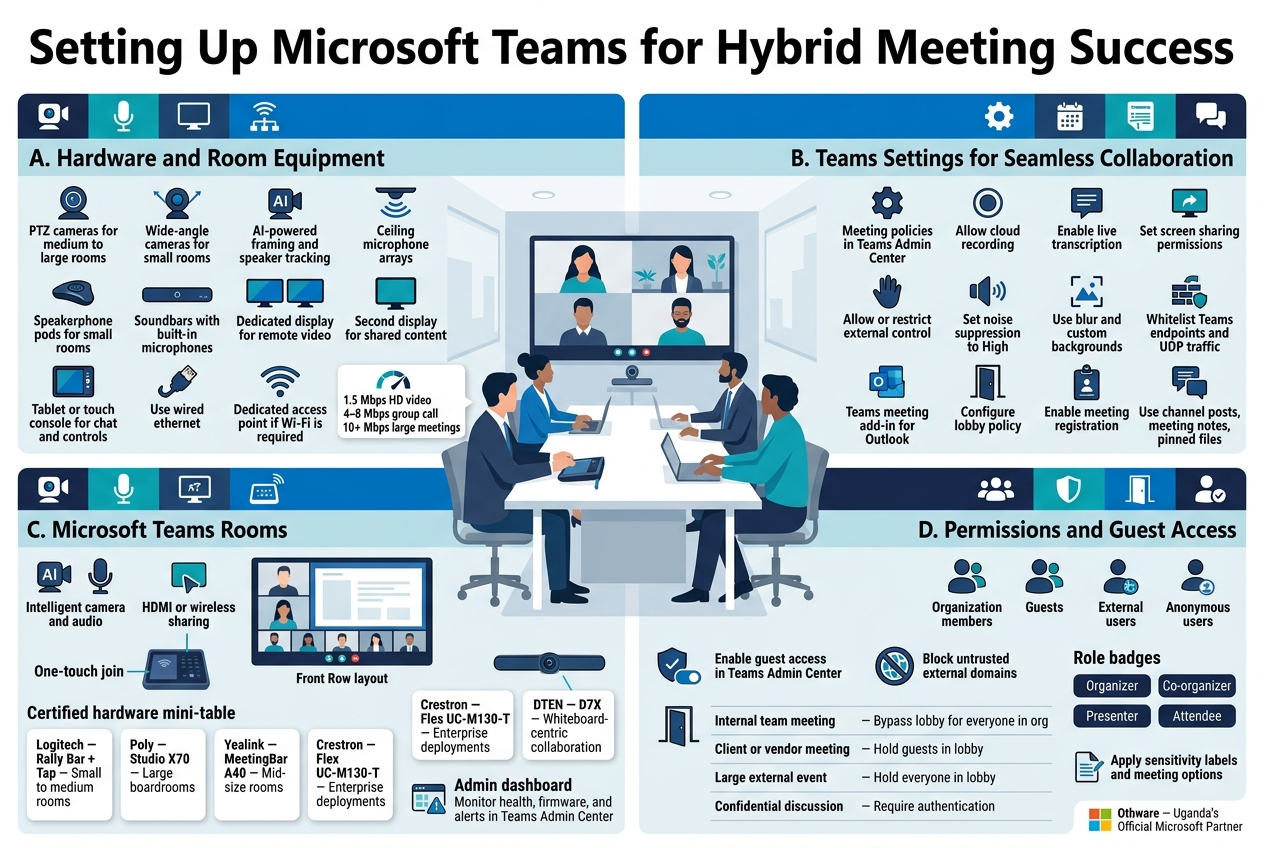
- PTZ (Pan-Tilt-Zoom) cameras are a strong choice for medium to large rooms. They can follow the active speaker and give remote participants a clear view of whoever is talking.
- Wide-angle cameras work well for smaller rooms where everyone sits close together and you want a full-room view without mechanical movement.
- AI-powered cameras like the Logitech Rally Bar or the Poly Studio take things further by automatically framing the active speaker and adjusting the field of view dynamically.
Microphones and Speakers
Audio quality is arguably more important than video. People will tolerate slightly blurry video, but they will disconnect from a meeting the moment they cannot understand what someone is saying.
- Ceiling microphone arrays such as the Shure MXA910 capture audio from every direction without cluttering the table.
- Speakerphone pods like the Jabra Speak series are great for smaller rooms and are easy to set up without any technical expertise.
- Soundbars with built-in microphones offer a clean, all-in-one solution and pair well with a display at the end of the room.
Displays
Think about how many screens you have in your room and what each one shows.
| Screen Purpose | Recommended Setup |
|---|---|
| Remote participants’ video feeds | Dedicated display at the front of the room |
| Shared content (presentations, documents) | Second display or large main screen |
| Meeting controls and chat | Touch console or tablet mounted on the table |
Having a dual-display setup means your in-room team can see remote faces clearly on one screen while following along with shared content on another. It removes the awkward situation where someone has to choose between seeing people or seeing the slides.
Network Infrastructure
No hardware list is complete without talking about your internet connection. A hybrid meeting room needs a reliable, high-bandwidth connection. Ideally, your conference room should be on a wired ethernet connection rather than Wi-Fi. If Wi-Fi is unavoidable, make sure the room has its own access point rather than sharing signal with a busy open office.
A rough guide for bandwidth requirements:
- HD video for one stream: around 1.5 Mbps upload and download
- Multiple participant streams in a group call: 4–8 Mbps minimum
- Large meetings with screen sharing and video: 10+ Mbps recommended
B. Configuring Teams Settings for Seamless Collaboration
Once your hardware is sorted, you need to make sure Microsoft Teams itself is configured to support the way your team actually works. The default settings get you started, but digging into the configuration options makes a noticeable difference in how smooth your meetings run.
Meeting Policies
In the Microsoft Teams Admin Center, meeting policies control what participants can and cannot do during a meeting. As an admin, you can create custom policies and assign them to specific users or groups.
Key settings to review:
- Allow cloud recording – Decide who can record meetings. For most organizations, limiting this to organizers or co-organizers prevents a chaotic collection of duplicate recordings.
- Transcription – Enable live transcription so participants who miss something can scroll back through what was said. This is especially helpful for remote attendees who may be dealing with audio issues.
- Screen sharing mode – Set this to “Entire screen” or “Single application” depending on how strict you want to be about what people can share.
- Allow external participants to give or request control – This is useful when collaborating with clients or vendors outside your organization, but think carefully before enabling it broadly.
- Noise suppression – Teams has built-in AI noise suppression. Make sure this is set to “High” for conference rooms where background noise from air conditioning or hallway traffic can bleed into the microphone.
Background Settings and Video Quality
Encourage your in-room participants to be mindful of what is behind them on camera. Teams allows custom background images and the blur feature, which helps maintain a professional look even when meeting from a messy office or a room with an unfortunate whiteboard behind the speaker.
For video quality, make sure Teams is not throttled by any endpoint protection software or network traffic management tools. Some corporate firewalls limit UDP traffic, which Teams relies on for real-time audio and video. Work with your IT team to whitelist Microsoft Teams endpoints as outlined in Microsoft’s official network planning documentation.
Calendar and Meeting Scheduling
Configure Teams to integrate tightly with Outlook or Microsoft 365 calendar. When scheduling hybrid meetings:
- Use the Teams meeting add-in for Outlook so every calendar invite automatically includes a Teams join link.
- Set a default lobby policy that determines who goes directly into the meeting and who waits for the organizer to admit them. For internal meetings, allowing everyone in the organization to bypass the lobby reduces friction. For external meetings, keeping the lobby active gives you control.
- Enable meeting registration for larger hybrid events where you want to track attendance and send follow-up communications.
Chat and Collaboration Before, During, and After
Teams chat and channels are the connective tissue that makes hybrid meetings feel like part of a continuous workflow rather than isolated events.
- Create a dedicated channel for recurring meeting groups so pre-meeting materials, agendas, and post-meeting notes all live in one place.
- Use meeting notes within Teams to capture decisions and action items that sync automatically to the meeting invite.
- Pin important messages and files in the channel so new team members can find context without digging through weeks of conversation history.
C. Leveraging Teams Rooms for a Professional In-Office Experience
Microsoft Teams Rooms (MTR) is a purpose-built solution that transforms a regular conference room into a fully certified, professionally managed meeting space. If your organization is serious about hybrid work, this is worth exploring seriously.
What Teams Rooms Actually Does
Rather than walking into a room, plugging in your laptop, sharing your screen, and hoping everything connects, Teams Rooms runs Teams natively on a dedicated device. The system handles everything automatically. When you walk into the room and tap the touch console, the camera, microphone, display, and meeting controls all come to life as a unified system.
Key capabilities:
- One-touch join – Scheduled meetings appear on the room console and start with a single tap.
- Intelligent camera and audio – MTR-certified hardware takes full advantage of Teams’ AI features, including speaker tracking and room-scale noise suppression.
- Content sharing – Wired HDMI input or wireless sharing through the room console gets content onto the big screen instantly.
- Front Row layout – This is a Teams Rooms-specific display layout that puts remote participants’ video feeds at eye level across the bottom of the screen while shared content sits above. It makes remote participants feel much more present in the room rather than being shoved into a tiny corner of the display.
Certified Hardware Bundles
Microsoft maintains a catalog of Teams Rooms certified hardware. Some popular options:
| Vendor | Product | Best For |
|---|---|---|
| Logitech | Rally Bar + Tap | Small to medium rooms |
| Poly | Studio X70 | Large boardrooms |
| Yealink | MeetingBar A40 | Mid-size rooms |
| Crestron | Flex UC-M130-T | Enterprise deployments |
| DTEN | D7X | Whiteboard-centric collaboration |
Management Through the Teams Admin Center
Teams Rooms devices can be monitored and managed remotely through the Teams Admin Center or through Microsoft Teams Rooms Pro Management. You can see device health, update firmware, push configuration changes, and get alerts when a room system goes offline or has a hardware issue — all without physically going to the room.
For organizations with multiple office locations across Uganda or the wider region, this remote management capability is a significant operational advantage. Working with Othware, Uganda’s Official Microsoft Partner, means you get expert guidance on deploying and managing Teams Rooms across your sites, with local support and licensing handled properly from the start.
D. Managing Permissions and Guest Access Effectively
Hybrid meetings frequently bring together people from different organizations — clients, vendors, contractors, and partners. Getting permissions and guest access right means your meetings stay secure without creating unnecessary friction for legitimate participants.
Understanding Access Levels in Teams
Teams has several distinct access levels:
- Organization members – Full access to Teams features based on their assigned policies.
- Guests – External users invited into a specific Team or channel. They get access to chat, files, and meetings within that Team but nothing else in your tenant.
- External (federated) users – People from other organizations using Teams who can be added to meetings but are not inside your tenant at all.
- Anonymous users – People who join a meeting via a link without signing in. They have the most limited experience and should be placed in the lobby by default.
Configuring Guest Access
Guest access is configured at the tenant level in the Microsoft 365 Admin Center and can be further refined in the Teams Admin Center.
Steps to enable and configure guest access properly:
- Go to the Teams Admin Center → Org-wide settings → Guest access.
- Enable guest access for your organization.
- Decide which features guests can access:
- Calling (audio/video)
- Meet now
- Screen sharing
- Private messaging
- Use Azure Active Directory to set additional restrictions on which domains can be invited as guests, blocking untrusted external domains entirely.
Lobby Settings
The meeting lobby is your first line of defense against uninvited participants joining a meeting. Set lobby policies based on meeting type:
| Meeting Type | Recommended Lobby Setting |
|---|---|
| Internal team meeting | Bypass lobby for everyone in org |
| Client or vendor meeting | Admit org members automatically, hold guests in lobby |
| Large external event | Hold everyone in lobby; organizer manually admits |
| Confidential or sensitive discussion | Hold all external participants; require authentication |
Roles Within a Meeting
Assigning the right roles before a meeting starts prevents the chaos of someone accidentally muting everyone or removing a participant.
- Organizer – Has full control. Can change settings mid-meeting, record, admit from lobby.
- Co-organizer – Same rights as the organizer. Assign this to a trusted colleague who can manage the meeting if the organizer has technical issues.
- Presenter – Can share content, manage participants to a degree, and use whiteboard.
- Attendee – View-only unless explicitly given presentation rights.
For hybrid meetings, it is a good habit to assign a dedicated co-organizer who is in the room to manage in-person logistics, while another co-organizer handles the remote participant experience — monitoring the chat, admitting people from the lobby, and keeping an eye on any technical issues.
Sensitivity Labels and Meeting Options
If your organization uses Microsoft Purview (formerly Microsoft Information Protection), you can apply sensitivity labels to meetings that automatically enforce security settings — such as preventing recording, disabling chat copying, or requiring end-to-end encryption for particularly sensitive discussions.
Meeting options can be pre-configured for each individual meeting through the meeting invite, giving organizers precise control without having to change global policies. This flexibility means you can run an open all-hands meeting with relaxed settings one day and a confidential board review with tight restrictions the next, without touching admin settings at all.
For businesses in Uganda looking to set up Teams with these enterprise-level configurations, partnering with Othware, the official Microsoft Partner for Uganda, takes the complexity out of the equation. Whether you need help purchasing Microsoft 365 licenses, deploying Teams Rooms, or configuring governance policies, having a local partner who understands both the technical landscape and the regional business environment makes the whole process smoother and faster.
Maximizing Google Meet for Hybrid Collaboration
Optimizing Google Meet Settings for Large and Small Groups
Google Meet has quietly become one of the most capable hybrid meeting tools on the market, and a big part of that comes down to how well you configure it before anyone even joins the call. Getting your settings right from the start saves you from the classic hybrid meeting chaos — someone can’t hear, someone’s video is frozen, or the breakout rooms are a mess.
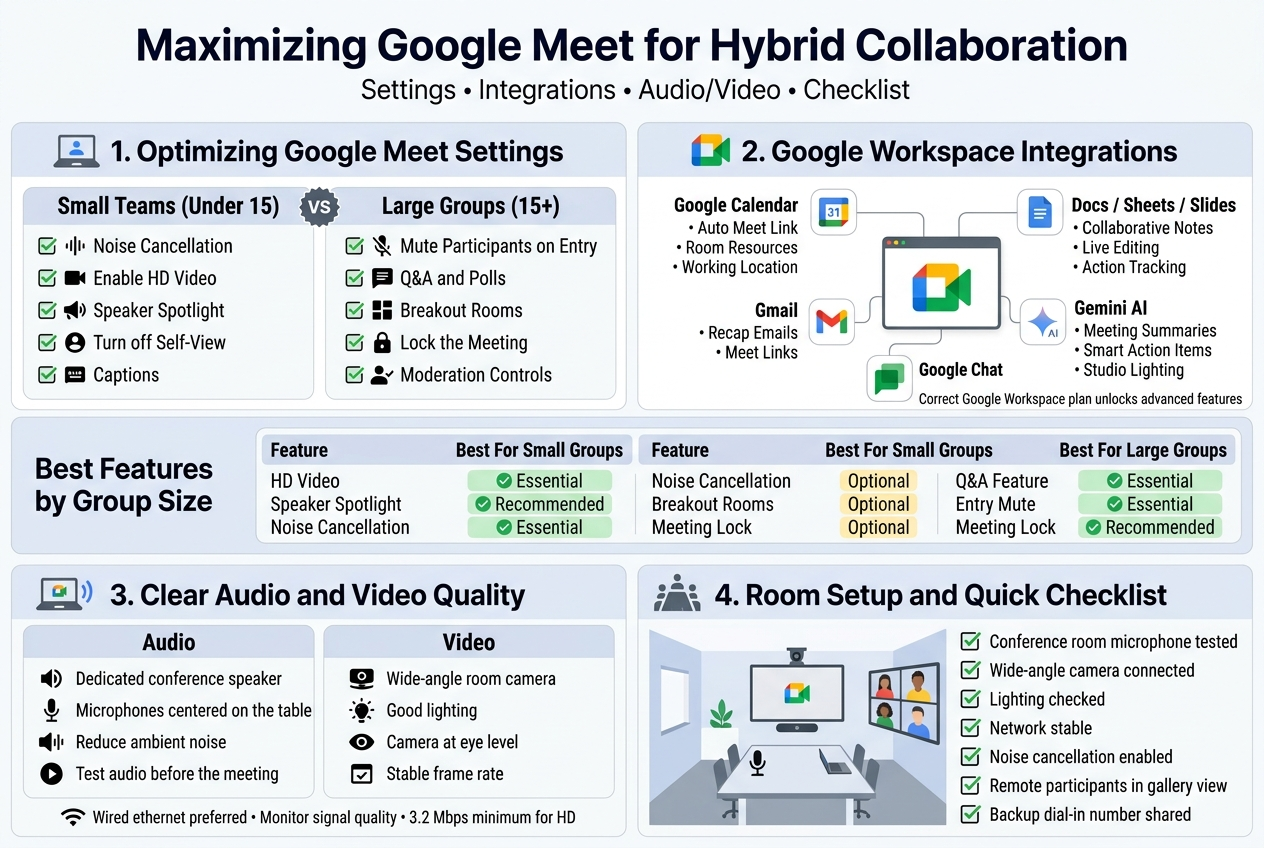
Settings That Matter for Small Teams (Under 15 People)
For smaller hybrid groups, the goal is intimacy and natural conversation flow. Here’s what to lock in:
- Turn on noise cancellation — Google Meet’s built-in noise cancellation filters out background sounds like keyboard clicks, HVAC noise, or a barking dog. Go to Settings > Audio and switch it on. This is a game-changer when some participants are working from home.
- Enable HD video — In Settings > Video, switch your sending and receiving resolution to 720p or 1080p if your bandwidth allows. Small groups benefit most from seeing facial expressions clearly.
- Use Speaker Spotlight — This feature automatically highlights whoever is speaking. For small groups, it keeps everyone visually connected without manually pinning tiles.
- Turn off self-view after joining — It sounds minor, but hiding your own face reduces cognitive load and keeps you focused on other participants rather than yourself.
- Enable captions — Even in small meetings, live captions help when someone has an accent that’s hard to follow, or when audio quality dips temporarily.
Settings That Matter for Large Groups (15+ People)
Larger hybrid meetings come with a completely different set of challenges. Managing participation, reducing distractions, and keeping everyone focused requires a different configuration approach.
- Mute participants on entry — Set this as the default for large calls. One person joining from a noisy environment can derail the whole meeting before it even begins.
- Use Q&A and Poll features — These are built into Google Meet and are incredibly useful for giving remote participants a structured way to engage without interrupting the flow. Hosts can find these under the Activities panel during a meeting.
- Breakout Rooms — For large hybrid sessions, breakout rooms allow you to split into smaller discussion groups. You can pre-assign participants or let Google Meet assign them randomly. Hosts can also jump between rooms to check in.
- Lock the meeting once everyone has joined — This prevents unexpected guests from dropping in halfway through and disrupting the session.
- Use the moderation controls — As a host, you can prevent participants from sharing their screens, muting or unmuting others, or chatting. Adjusting these based on the type of meeting keeps things professional and orderly.
| Feature | Best For Small Groups | Best For Large Groups |
|---|---|---|
| HD Video | ✅ Essential | ✅ Essential |
| Speaker Spotlight | ✅ Recommended | ✅ Recommended |
| Noise Cancellation | ✅ Essential | ✅ Essential |
| Breakout Rooms | Optional | ✅ Essential |
| Q&A Feature | Optional | ✅ Essential |
| Entry Mute | Optional | ✅ Essential |
| Meeting Lock | Optional | ✅ Recommended |
Using Google Workspace Integrations to Boost Productivity
Google Meet doesn’t operate in isolation — it’s part of the broader Google Workspace ecosystem, and when you plug into that ecosystem properly, your hybrid meetings become dramatically more productive. If your organization has already invested in Google Workspace (and if you’re in East Africa, working with a recognized Google Partner in Uganda like Othware Uganda can help you get the right licenses and setup), the integrations you have access to are genuinely powerful.
Google Calendar Integration
Every Google Meet link is automatically generated when you create a calendar event, which sounds simple but has a massive impact on hybrid meeting management. Key ways to use this well:
- Add room resources when booking — When scheduling a meeting, add conference rooms directly from the calendar. This ensures the right physical space is booked and everyone knows where to go.
- Include video call links automatically — Make sure your Google Workspace settings automatically add a Meet link to every Calendar invite. This removes the back-and-forth of “where’s the link?”
- Set working location — Team members can mark themselves as working from home or the office, which helps meeting organizers understand who will be in the room and who will be joining remotely.
Google Docs, Sheets, and Slides Integration
You can open and collaborate on Google Docs, Sheets, or Slides directly during a Meet call. This real-time collaboration feature is where hybrid meetings start to feel genuinely seamless:
- Collaborative note-taking — Open a shared Google Doc during the meeting and assign someone (or everyone) to take notes in real time. Remote and in-room participants can all see and contribute to the same document simultaneously.
- Live editing during presentations — If you’re presenting a Google Slides deck, remote participants can follow along in the doc even if screen sharing quality dips. They can also click through slides at their own pace.
- Action item tracking in Sheets — Keep a live Google Sheet open in a side panel where action items get logged during the meeting. By the time the call ends, the follow-up list is already done.
Google Gemini (AI Features in Workspace)
Google has been rolling out AI-powered features across Workspace, and several of them directly improve hybrid meeting quality:
- Meeting summaries and transcripts — Gemini can generate a summary of your meeting, capturing key discussion points and decisions. This is invaluable for hybrid teams where not everyone could attend live.
- Smart action items — The AI can identify action items from the conversation and surface them after the meeting ends.
- Studio lighting and backgrounds — AI-powered visual enhancements help remote participants look more polished, even when joining from a less-than-ideal environment.
Gmail and Chat Integration
After a hybrid meeting, the follow-up process often breaks down. Gmail and Google Chat integrations keep things connected:
- Send meeting summaries directly from Meet to Gmail — Share recap emails without having to rewrite everything from scratch.
- Google Chat spaces for ongoing project work — Rather than relying entirely on meetings, create dedicated Google Chat spaces where your hybrid team continues conversations asynchronously.
- Meet links in Chat — Start or jump into a Meet call directly from a Google Chat conversation without switching apps.
Buying the Right Google Workspace Plan in Uganda
Getting the most out of these integrations requires having the right Google Workspace license tier. Not all plans include features like Gemini AI summaries, advanced moderation controls, or longer meeting recordings. If you’re looking to buy Google Workspace licenses in Uganda, working with an authorized reseller like Othware Uganda, an official Google Partner in Uganda, ensures you get proper onboarding, local support, and the correct licensing structure for your team size and needs.
Ensuring Clear Audio and Video Quality for Remote Participants
Audio and video quality are the single biggest make-or-break factors in hybrid meetings. You can have the best agenda and the most engaged team, but if remote participants can’t hear clearly or their video looks like it was recorded in 2004, they will disengage. Here’s how to ensure this never happens.
Audio: The Most Critical Element
Bad audio is worse than bad video — people will tolerate a slightly blurry image, but they will not tolerate not being able to hear. These are the non-negotiables:
- Use a dedicated conference speaker or speakerphone in the physical room — The built-in laptop microphone picks up room echo and misses people sitting more than a couple of feet away. Devices like the Jabra Speak series or Poly Sync are popular choices and plug directly into a laptop or conference room system.
- Position microphones correctly — Place conference mics in the center of the table, not near a wall or window. Sound reflects off hard surfaces and creates echo.
- Reduce ambient noise in the physical room — Close doors, turn off fans or air conditioning if possible during important segments, and ask participants sitting in the physical room to mute their individual devices since having multiple active microphones creates feedback loops.
- Test audio before every important meeting — Use Google Meet’s built-in test feature (available before you officially join) to confirm microphone and speaker levels.
- Noise cancellation on all sides — Remind remote participants to enable noise cancellation on their individual devices, not just the in-room setup.
Video: Helping Remote Participants Feel Present
Remote participants who can see the room clearly feel far more included than those watching a grainy, poorly lit feed.
- Use a wide-angle camera for the conference room — Standard laptop webcams only capture whoever is sitting directly in front of the screen. A dedicated wide-angle USB camera (like the Logitech Brio or Rally series) captures the full room, so remote participants can actually see everyone.
- Lighting matters more than camera quality — A decent camera with good lighting beats an expensive camera in a dark room every time. Position participants so they’re facing a window or use a ring light if natural light isn’t available.
- Camera at eye level — Cameras placed below face level create an unflattering upward angle and signal to remote participants that they’re not a priority. Mount or position cameras so they’re at natural eye level.
- Consistent frame rate — Choppy video is usually a bandwidth issue. Prioritize your network connection for video calls during important meetings, and close bandwidth-heavy apps running in the background.
Network and Bandwidth Considerations
Google Meet adapts to available bandwidth, but there are steps you can take to keep quality consistent:
- Wired ethernet connections — For in-room setups, a wired connection is always more stable than Wi-Fi.
- Reserve network bandwidth during large calls — Speak with your IT team about traffic prioritization (QoS settings) that give video conferencing traffic priority over other network activity.
- Monitor connection quality during calls — Google Meet shows a signal quality indicator in the top right corner of the screen. If it drops to yellow or red, reduce video quality temporarily or ask participants to turn off video and rely on audio only.
- Set a minimum bandwidth expectation for remote participants — For HD video calls, Google Meet recommends at least 3.2 Mbps for sending and receiving. Share this expectation with remote team members so they can plan accordingly.
Display Setup for the Physical Room
The physical room setup needs to consider how in-room participants view remote attendees, not just how the room looks from the camera:
- Use a large external display or TV — A small laptop screen makes it impossible to see remote participants’ faces, which breaks connection quickly. A 55-inch or larger display mounted at the end of the room works well.
- Show remote participants in gallery view on the room display — This way, everyone in the physical room can see all remote participants simultaneously and read their body language.
- Dedicated displays for content sharing — In larger rooms, consider a second display for shared content so the main display stays focused on participant video feeds.
A Quick Checklist Before Every Hybrid Meeting
- Conference room microphone tested and positioned correctly
- Wide-angle camera connected and showing full room view
- Lighting checked — no backlighting or dark spots
- Network connection stable (wired preferred)
- Noise cancellation enabled on all active devices
- Large display showing remote participants in gallery view
- Meeting noise cancellation turned on in Google Meet settings
- Backup dial-in number shared with participants in case of technical issues
Bridging Microsoft Teams and Google Meet in One Workflow
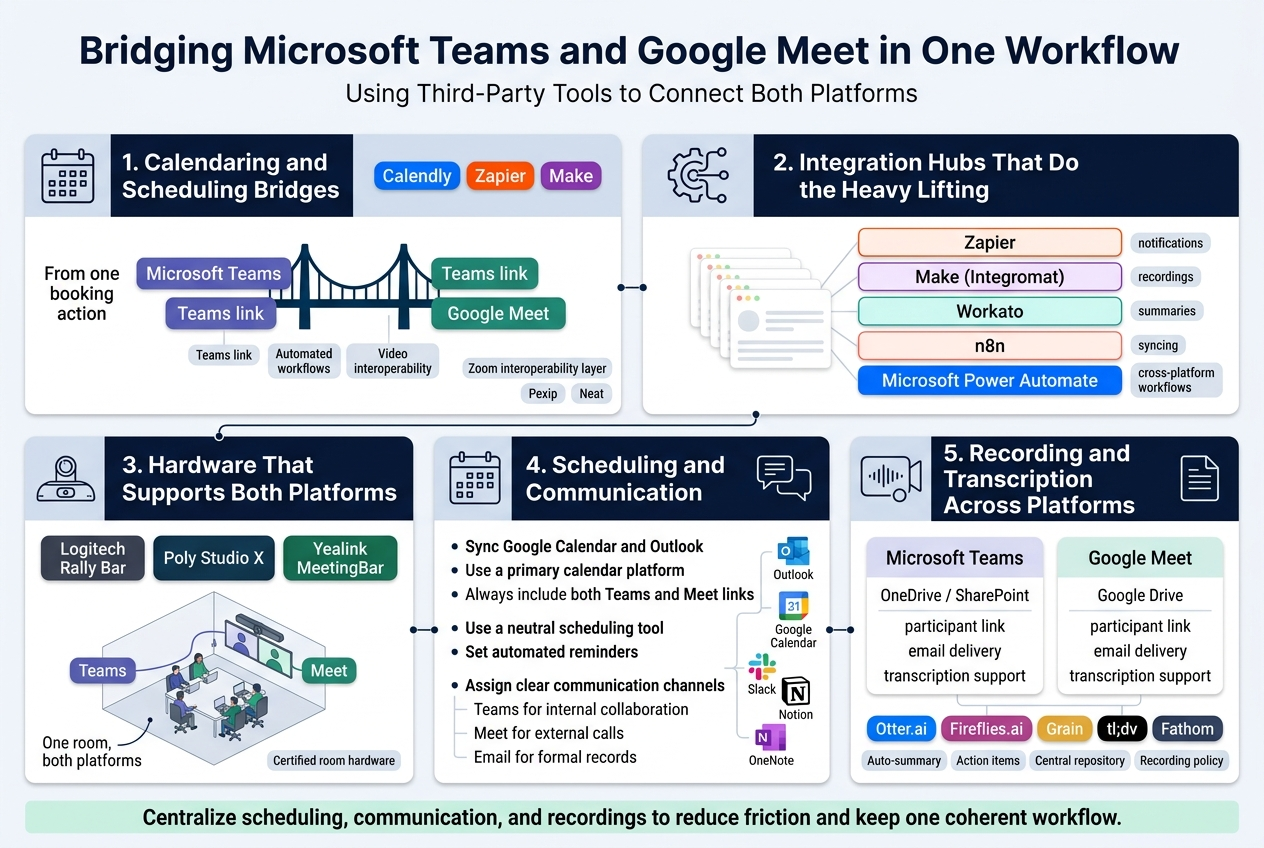
Using Third-Party Tools to Connect Both Platforms
Running Microsoft Teams and Google Meet side by side can feel like managing two separate universes. But with the right third-party tools in your corner, you can pull both platforms into a single, coherent workflow without losing your mind — or your meeting data.
Calendaring and Scheduling Bridges
One of the most practical starting points is getting your calendar ecosystem to play nice with both platforms. Tools like Calendly, Zapier, and Make (formerly Integromat) let you build automated workflows that trigger actions across both Teams and Meet simultaneously. For example, when someone books a meeting through Calendly, you can automatically generate both a Teams link and a Meet link, letting participants choose whichever platform works best for them.
Zoom’s interoperability layer is also worth mentioning here — though Zoom is its own platform, it supports Microsoft Teams Rooms and can sometimes serve as a neutral bridge in complex AV environments. Similarly, Pexip and Neat offer video interoperability solutions that let Teams and Meet participants join the same call without needing to switch apps.
Integration Hubs That Do the Heavy Lifting
Here are some tools that teams genuinely rely on to connect both ecosystems:
- Zapier — Build no-code workflows that push meeting notifications, recordings, and summaries between Teams and Google Workspace apps
- Make (Integromat) — More advanced logic-based automations for syncing calendar events, contacts, and meeting data
- Workato — Enterprise-grade automation that connects Teams with Google Drive, Gmail, and Meet in structured pipelines
- n8n — An open-source alternative that tech-savvy teams can self-host for full control over cross-platform workflows
- Microsoft Power Automate — Especially useful if your organization is already in the Microsoft 365 ecosystem; it connects well with Google Workspace through built-in connectors
The key is identifying where your biggest friction points are — scheduling conflicts, missed notifications, duplicate recordings — and picking a tool that solves that specific problem rather than adding another layer of complexity.
Hardware That Supports Both Platforms
If you’re running hybrid meetings from a conference room, your physical setup matters just as much as the software. Devices like Logitech Rally Bar, Poly Studio X, and Yealink MeetingBar support both Microsoft Teams and Google Meet natively. This means your room hardware doesn’t force you into one ecosystem. You can run a Teams call on Monday and a Google Meet on Tuesday using the exact same equipment.
Organizations working with Othware Uganda, the Official Microsoft Partner for Uganda, have found that getting the right room hardware certified for Teams Rooms saves a massive amount of setup headache while still leaving the door open for Google Meet compatibility.
Scheduling and Managing Cross-Platform Meetings Efficiently
Scheduling is where most hybrid meeting chaos actually starts. When half your team lives in Google Calendar and the other half is in Outlook, finding a time that works — and making sure everyone gets the right meeting link — becomes a daily struggle.
Syncing Google Calendar and Outlook
The first step is getting both calendars talking to each other. Here’s how most organizations handle it:
- Google Workspace users can subscribe to an Outlook calendar via ICS link, giving them a read-only view of colleagues’ availability
- Microsoft 365 users can add a Google Calendar using the “Add from directory” option or import ICS files manually
- Tools like CalendarBridge or SyncThemCalendars go further by creating two-way syncs so changes on one platform automatically reflect on the other
Building a Scheduling Protocol That Works for Everyone
Rather than leaving meeting scheduling to chance, the smartest hybrid teams set clear ground rules:
- Designate a primary calendar platform for company-wide events while allowing individual teams to use their preferred tool
- Always include both a Teams and Meet link in meeting invites for cross-functional meetings where participants may be on different platforms
- Use a meeting aggregator like Calendly or HubSpot Meetings as the external-facing booking tool so guests don’t need to worry about which platform your team uses internally
- Set up automated reminders that go out 24 hours and 15 minutes before a meeting, regardless of which platform the meeting is on
Comparing Scheduling Options Side by Side
| Feature | Microsoft Outlook + Teams | Google Calendar + Meet | Third-Party Tool (e.g., Calendly) |
|---|---|---|---|
| Native calendar integration | Excellent | Excellent | Moderate |
| Cross-platform invite support | Requires manual setup | Requires manual setup | Built-in |
| Automated reminders | Yes | Yes | Yes |
| Time zone handling | Good | Good | Excellent |
| Group availability finder | FindTime add-in | Yes (built-in) | Depends on plan |
| External guest experience | Familiar for Microsoft users | Familiar for Google users | Platform-agnostic |
For organizations that frequently schedule meetings with external clients or partners — a common scenario for businesses across East Africa working with international teams — having a neutral scheduling tool removes a lot of friction. Companies that buy Google Workspace and Microsoft licenses in Uganda through trusted partners often ask about this exact setup, and the answer is almost always the same: use a third-party scheduling layer so neither platform dominates the experience.
Maintaining Consistent Communication Across Both Tools
The real challenge with running both Teams and Google Meet isn’t the calls themselves — it’s everything that happens around the calls. Chat threads, shared files, follow-up tasks, and team announcements all have a tendency to fragment across platforms, leaving people confused about where to look for what.
Setting Clear Channels for Communication
The most effective hybrid teams don’t try to mirror everything across both platforms. Instead, they assign clear purposes to each:
- Microsoft Teams handles internal project communication, file collaboration (especially for Office docs), and departmental channels
- Google Meet is used for quick video calls, especially with external partners who are already in Google Workspace
- Email (whether Outlook or Gmail) remains the official record for formal communications, decisions, and external correspondence
This kind of intentional design prevents the situation where the same conversation is happening in a Teams chat, a Meet chat window, and a Gmail thread all at once.
Using a Shared Messaging Layer
Some teams go a step further and bring in a neutral communication tool like Slack to serve as the connective tissue between their Teams and Google Workspace environments. Slack integrates with both platforms, letting you:
- Get notified about Teams meetings and Google Calendar events in one place
- Share files from OneDrive or Google Drive without switching apps
- Create channels that include both Teams-native users and Google Workspace users
This isn’t the right solution for every team — it adds another app to the stack — but for organizations managing large cross-platform workforces, it can genuinely simplify day-to-day communication.
Keeping Documentation Consistent
When your team is split across platforms, documentation becomes critical. Pick one place where meeting notes, decisions, and action items always live. Good options include:
- Notion — Works well as a neutral documentation hub that both Teams and Google Workspace users can access
- Confluence — Popular for engineering and product teams, integrates with both ecosystems
- Google Docs shared via link — Simple and accessible to anyone, regardless of platform
- OneNote linked in Teams — Works beautifully if Teams is your primary platform and you want native Microsoft integration
The platform matters less than the consistency. If half the team puts notes in a Teams channel and the other half drops them in a Google Doc, things fall through the cracks fast.
Handling Recording and Transcription Across Platforms
Recording is one of the trickiest parts of running meetings across Teams and Meet. Both platforms handle recordings differently, and when you’re mixing the two, you need a deliberate strategy to make sure nothing gets lost.
How Each Platform Handles Recording Natively
Microsoft Teams:
- Meetings are recorded to OneDrive (for standard meetings) or SharePoint (for channel meetings)
- Recordings are automatically available to meeting participants through a link in the chat
- Microsoft 365 Business plans include transcription in supported languages
- Recordings expire after a set number of days unless explicitly saved
Google Meet:
- Recording is available on Google Workspace Business Standard and above plans
- Recordings save automatically to the organizer’s Google Drive
- A link is shared with meeting participants via email after the meeting ends
- Live captions are available in English (and expanding), but full transcription requires Google Workspace Business Plus or above, or a third-party tool
Bridging the Gap with Third-Party Transcription Tools
If you want consistent transcription quality across both platforms, third-party tools are the cleanest solution:
| Tool | Teams Support | Meet Support | Auto-Summary | Action Items | Storage |
|---|---|---|---|---|---|
| Otter.ai | Yes | Yes | Yes | Yes | Otter cloud |
| Fireflies.ai | Yes | Yes | Yes | Yes | Fireflies cloud |
| Grain | Yes | Yes | Yes | No | Grain cloud |
| tl;dv | Yes | Yes | Yes | Yes | Cloud or export |
| Fathom | Yes | Yes | Yes | Yes | Free for basic |
Tools like Fireflies.ai and tl;dv are particularly popular because they join your meeting as a bot participant, record, transcribe, and then deliver a searchable summary with action items — all automatically. This works the same way whether the meeting is on Teams or Meet, which means you get a consistent experience regardless of which platform you used for a particular call.
Building a Recording Policy That Spans Both Platforms
A recording policy isn’t just a nice-to-have — in many industries and regions, it’s a legal requirement. Here’s what a solid cross-platform recording policy should cover:
- Consent notification — Always notify participants that the meeting is being recorded, whether automatically through platform settings or verbally at the start
- Storage location — Define where recordings from each platform are stored and for how long (e.g., 30 days on the platform, then archived to a shared drive)
- Access permissions — Clarify who can access recordings from both Teams and Meet, especially for meetings involving sensitive information
- Transcription handling — Decide whether transcripts are shared openly or stored with restricted access
- Deletion schedule — Set a clear policy for when recordings are deleted to manage storage costs and data privacy
For businesses in Uganda that buy Google Workspace and Microsoft licenses to run hybrid environments, working with a local partner who understands both platforms is a huge advantage when setting these policies up correctly. Being a Google Partner in Uganda or working with the Official Microsoft Partner for Uganda means access to guidance that goes beyond just activating licenses — it includes helping organizations configure recording, retention, and compliance settings that fit their specific needs.
Syncing Recordings to a Central Repository
Once you have recordings coming in from both Teams and Google Meet, the best practice is funneling everything into one central storage location. Options include:
- Google Drive — If Google Workspace is your primary platform, auto-syncing Teams recordings here (via Zapier or Power Automate) keeps everything in one place
- SharePoint / OneDrive — If Microsoft 365 is dominant, you can manually or automatically move Google Meet recordings here
- A dedicated folder structure — Whether you choose Google Drive or SharePoint, maintain a consistent folder structure:
Year > Month > Team/Project > Meeting Name
This centralized approach means anyone on the team can find a recording from three months ago without needing to remember which platform that particular meeting was on. It removes the “was that a Teams call or a Meet call?” confusion that wastes time and creates gaps in institutional knowledge.
Proven Best Practices for Running Engaging Hybrid Meetings
Designing an Inclusive Agenda for In-Person and Remote Attendees
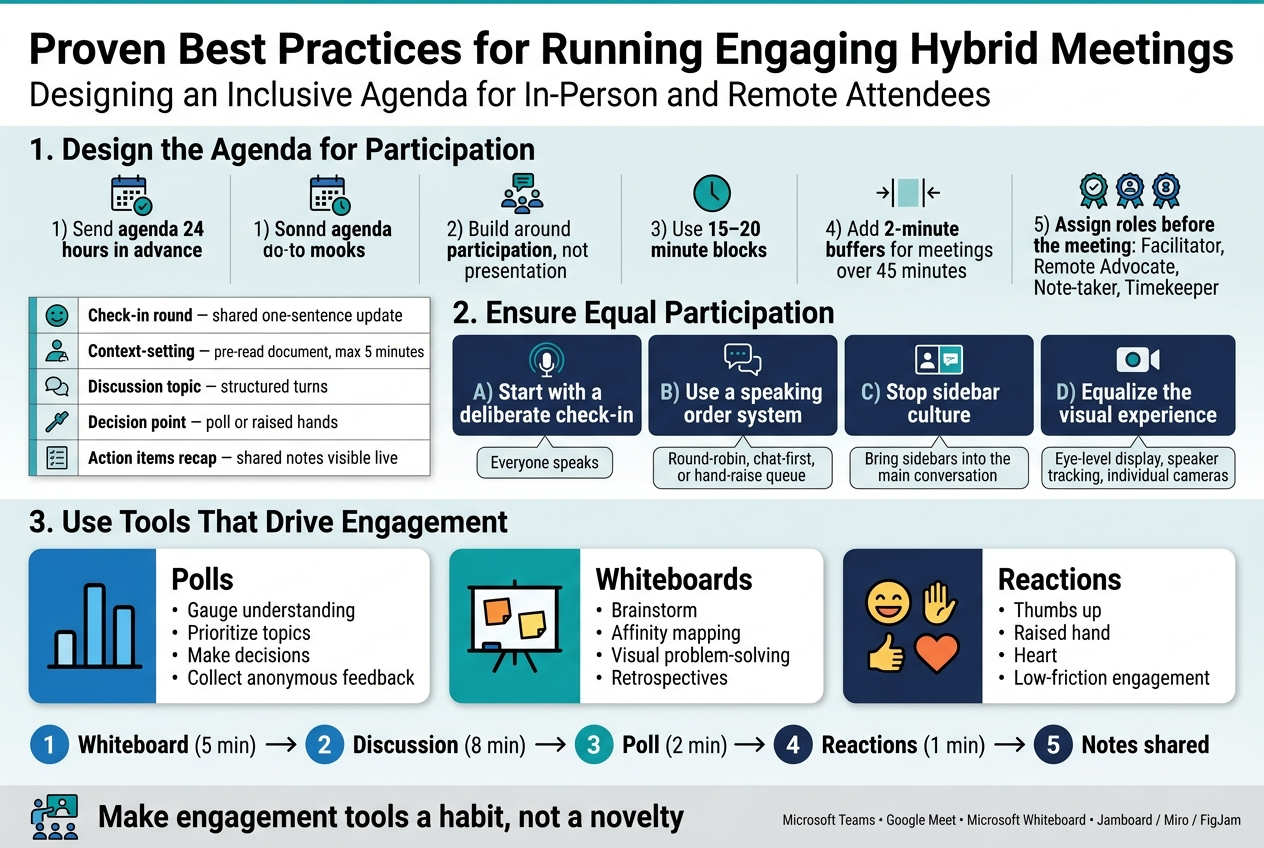
The agenda is where hybrid meetings either succeed or fall apart. When you design an agenda that only caters to the people sitting in the room, your remote attendees end up feeling like spectators watching a game they were told they could play. Getting this right from the start makes everything else easier.
Build the Agenda Around Participation, Not Presentation
A common mistake is treating the agenda like a list of topics to talk at people about. Flip that around. Every agenda item should have a clear answer to the question: “What does everyone — remote and in-person — actually do during this part?” If the answer is “they listen,” that segment needs to be rethought or shortened significantly.
Here’s a practical structure that works well for hybrid teams:
| Agenda Element | Purpose | Remote-Friendly Format |
|---|---|---|
| Check-in round | Builds connection before business starts | Each person unmutes and shares one sentence |
| Context-setting | Aligns everyone on background | Shared screen with pre-read document, max 5 minutes |
| Discussion topic | Collaborative problem-solving | Structured turns, not open floor |
| Decision point | Moving forward on something | Poll or raised hands (both digital and physical) |
| Action items recap | Clarity on next steps | Shared notes visible to everyone in real time |
Send the agenda at least 24 hours in advance. Include links to any documents, slides, or prep materials. Remote attendees especially benefit from pre-reading because they can’t lean over to a colleague and whisper “wait, what is this about?” when the meeting kicks off.
Time Blocks That Respect Everyone’s Energy
Long stretches of uninterrupted content delivery kill engagement — particularly for remote participants who have a dozen distractions one click away. Break your agenda into focused blocks of no more than 15–20 minutes before switching gears or inviting interaction. Label time blocks clearly, like “Discussion: 10 minutes” or “Decision: 5 minutes,” so people know exactly what’s expected and when their voice matters.
If your meeting runs longer than 45 minutes, build in a two-minute buffer between major segments. This gives people time to stretch, refocus, or send a quick message — and it stops the energy from flatlining.
Assign Roles Before the Meeting Starts
Your agenda should also pre-assign roles to specific people, not just list topics. Consider these key roles for every hybrid meeting:
- Facilitator — Keeps the conversation on track and manages the clock
- Remote Advocate — Someone in the physical room whose specific job is to monitor the chat, flag raised hands from remote attendees, and make sure online voices aren’t steamrolled
- Note-taker — Captures decisions and action items in a shared document everyone can see live
- Timekeeper — Keeps segments from bleeding into each other
When everyone knows their role before the meeting begins, the meeting runs itself more smoothly. The remote advocate role is particularly powerful — it’s a small shift that completely changes how included online participants feel.
Encouraging Equal Participation from All Attendees
Equal participation doesn’t happen by accident. Without deliberate design, the people in the room will naturally dominate the conversation while remote attendees fade into the background. Here’s how to actively prevent that.
Start with a Deliberate Check-In
Open every hybrid meeting with a structured check-in that requires every single person — remote or in-room — to speak. It doesn’t need to be deep. “Share your name and one word for how you’re feeling” works perfectly. This does two things: it forces the technical side (everyone confirms their audio and video are working) and it establishes early that remote voices are expected and welcomed.
Never skip this step for the sake of “getting right to business.” The two minutes you spend on it pays back tenfold in engagement through the rest of the session.
Use a Speaking Order System
Open-floor discussions almost always favor the loudest, most confident people — and in hybrid settings, that almost always means the people physically in the room. Swap out the open floor for a structured speaking order on important discussion topics.
You can do this a few different ways:
- Round-robin — Go around the virtual room in a set order, alternating between in-person and remote participants
- Chat-first approach — Ask everyone to type their initial thought in the chat before anyone speaks out loud, then the facilitator calls on people based on what they wrote
- Hand-raise queue — Use the built-in hand-raise features in Microsoft Teams or Google Meet to create a visible queue, and the facilitator works through it systematically
The chat-first approach is particularly effective because it gives introverted participants and remote attendees an equal shot at being heard before the dominant voices in the room have already shaped the conversation.
Watch for “Sidebar” Culture
One of the biggest participation killers in hybrid meetings is the sidebar conversation — the in-room whispers, head-nods, and eye-contact exchanges that remote participants simply cannot access. When these happen, decisions start being made in the room before the group has officially agreed on anything.
Call it out without making it awkward. A simple “Let’s bring that into the main conversation so everyone can hear” is enough. Over time, your team will internalize the norm that sidebar conversations during hybrid meetings are off-limits.
Equalize the Visual Experience
Camera placement matters more than most people realize. If your in-room attendees are seated around a conference table with one camera at the end of the room, remote participants are essentially looking at a group of people from far away — they can’t read facial expressions, they can’t tell who’s speaking, and they feel disconnected.
Where possible:
- Use individual cameras for in-room participants (each person has their own laptop open and camera on)
- Use a conference room camera with speaker-tracking technology that zooms in on whoever is talking
- Place the display screen showing remote participants at eye level, not in a corner
When in-room people look at the camera while speaking — rather than at each other — it signals to remote participants that they’re part of the conversation, not just watching it.
Using Polls, Whiteboards, and Reactions to Drive Engagement
Technology is your ally when it comes to breaking passive observation and pulling people into active participation. Both Microsoft Teams and Google Meet offer built-in tools that, when used well, completely change the energy of a hybrid meeting.
Polls: Fast Decisions and Real-Time Feedback
Polls are one of the most underused features in hybrid meeting technology, and they work for more than just formal votes. Use them throughout a meeting to:
- Gauge understanding — “Does everyone feel clear on what we just discussed?” with a simple Yes/Somewhat/No option
- Prioritize topics — “Which of these three issues should we tackle first?”
- Make decisions — “Are we ready to move forward with Option A or do we need more discussion?”
- Collect anonymous feedback — Sometimes people won’t speak up in a group but will answer honestly in a poll
In Microsoft Teams, you can launch polls directly through the Forms integration during a meeting. In Google Meet, the Polls feature is accessible to meeting hosts and co-hosts from the Activities panel. Both allow real-time result sharing so the whole group sees responses as they come in — which itself sparks discussion.
Pro tip: Create your polls before the meeting starts. Don’t waste meeting time setting up a poll from scratch while 15 people watch you click around. Pre-built polls keep momentum going.
Whiteboards: Thinking Together in Real Time
Collaborative whiteboards close the gap between in-person brainstorming and remote participation better than almost any other tool available. When ideas go on a shared digital canvas that everyone can see and edit simultaneously, the physical room stops being an advantage.
Microsoft Teams includes Microsoft Whiteboard, which supports sticky notes, drawing, text, and shapes — all editable by every participant regardless of whether they’re in the room or joining remotely. Google Meet integrates with Jamboard (though Jamboard is transitioning to third-party alternatives like Miro and FigJam, which integrate smoothly with Google Workspace).
Use whiteboards for:
- Brainstorming sessions — Everyone adds their ideas simultaneously without waiting for a turn to speak
- Affinity mapping — Group similar sticky notes together as a team activity
- Visual problem-solving — Draw out a process, a system, or a decision tree that the whole group can annotate
- Retrospectives — What went well, what didn’t, what to do differently
The key to whiteboard success in hybrid meetings is making sure everyone knows how to use the tool before the meeting starts. A 30-second orientation (“Here’s how to add a sticky note”) at the start of a whiteboard segment prevents confusion and keeps energy high.
Reactions: Low-Friction Engagement Signals
Not every moment of a meeting requires someone to speak. Reactions give people a way to signal agreement, enthusiasm, confusion, or disagreement without interrupting the flow — and they’re especially valuable for remote participants who might feel awkward unmuting to say “I agree with that.”
Both Microsoft Teams and Google Meet support in-meeting reactions (thumbs up, heart, raised hand, and others depending on the platform). Encourage your team to use them actively. When a facilitator proposes an idea and asks “Does this direction make sense to everyone?”, inviting reactions instead of verbal responses gives everyone — remote and in-person — an equal, low-pressure way to respond.
Build reactions into your facilitation language:
- “Give me a thumbs up in the reactions if you’re following along”
- “Use the raised hand emoji if you want to add something”
- “React with ❤️ if this idea resonates with you”
Combining Tools for Maximum Impact
The real magic happens when you combine these tools in sequence. Here’s an example of how a 20-minute discussion segment might run in a high-engagement hybrid meeting:
- Whiteboard (5 min) — Everyone adds their ideas on sticky notes silently and simultaneously
- Discussion (8 min) — Facilitator groups the ideas and invites people to speak to specific clusters, using a round-robin order
- Poll (2 min) — Quick vote on the top priority idea
- Reactions (1 min) — “React if you feel good about this direction before we move on”
- Notes shared — Decision recorded in shared doc visible to all
This sequence keeps every participant active, gives multiple ways to contribute (writing, speaking, clicking), and respects different participation styles. Whether your team runs on Microsoft 365 licenses or Google Workspace — both available through partners like Othware Uganda, an official Microsoft Partner for Uganda and a Google Partner in Uganda — these tools are already built into your toolkit. The question is simply whether you’re using them with intention.
Make Engagement Tools a Habit, Not a Novelty
Teams that only bust out the whiteboard or polls for special occasions never quite get comfortable with them. Weave these tools into every meeting, even briefly. When using a poll or whiteboard stops feeling like a novelty and starts feeling like normal meeting behavior, participation rates climb and your hybrid sessions start to feel genuinely collaborative rather than performatively inclusive.
Measuring and Improving Your Hybrid Meeting Performance
Tracking Attendance and Engagement Metrics Effectively
Numbers don’t lie, and when it comes to hybrid meetings, the data you collect can be the difference between a team that thrives and one that slowly drifts apart. Both Microsoft Teams and Google Meet give you access to a surprisingly rich set of analytics — the trick is knowing what to look at and what to actually do with it.
What to Measure in Microsoft Teams
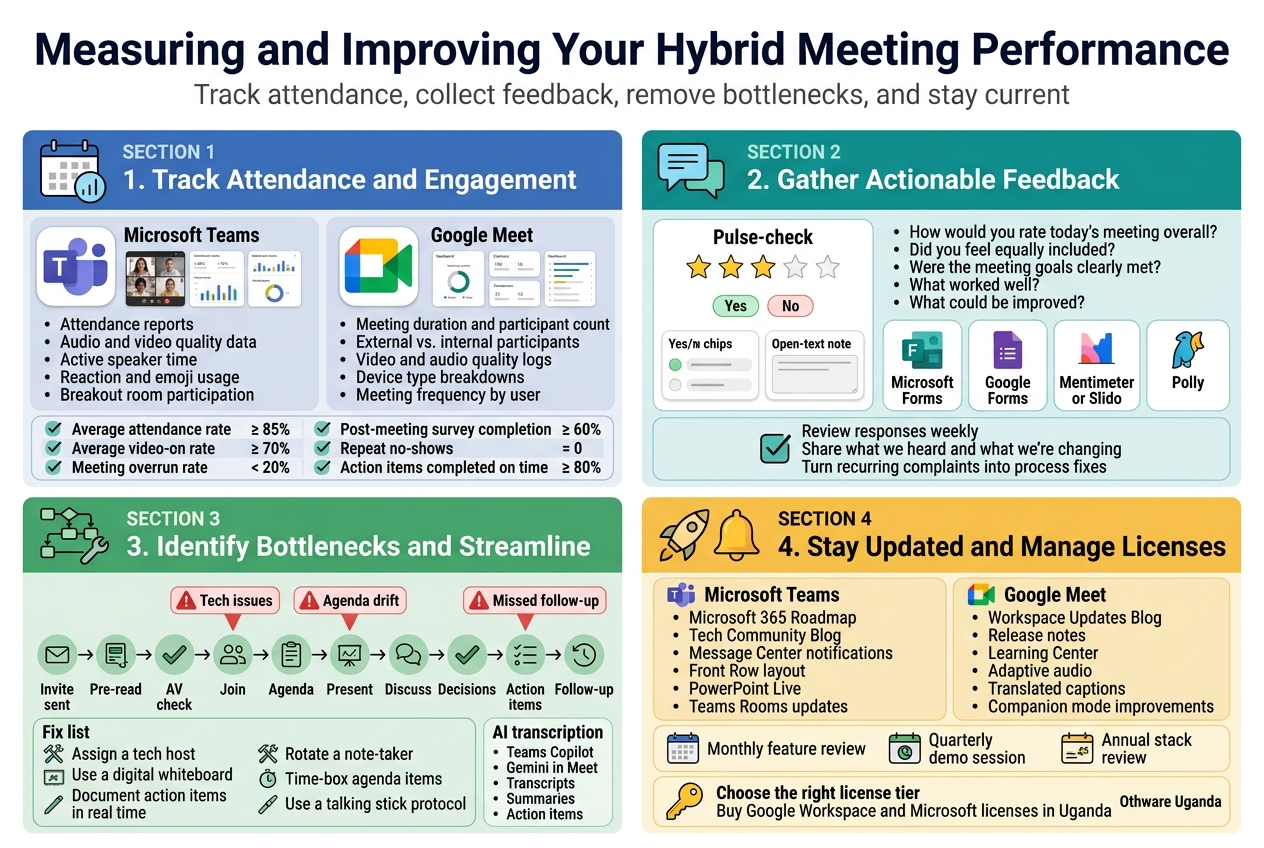
Microsoft Teams bakes meeting analytics right into the admin center. After every meeting, organizers and admins can pull reports that cover:
- Attendance reports — who joined, when they joined, and when they dropped off
- Audio and video quality data — network conditions, packet loss, jitter, and latency per participant
- Active speaker time — how long each person spoke during the session
- Reaction and emoji usage — a rough proxy for how engaged people felt during the call
- Breakout room participation — whether smaller group conversations actually happened
To access these in Teams, go to the Teams Admin Center → Analytics & Reports → Usage Reports. You can filter by meeting type, date range, user, and department. If you’re running Teams through a Microsoft 365 Business or Enterprise plan — which you can get through Othware Uganda, the Official Microsoft Partner for Uganda — you also get access to the Microsoft Viva Insights add-on, which tracks collaboration patterns over time and can flag when certain team members are consistently passive during meetings.
What to Measure in Google Meet
Google Meet’s analytics live inside Google Workspace Admin Console → Reports → Apps → Meet. Key metrics include:
- Meeting duration and participant count
- External vs. internal participants
- Video and audio quality logs
- Device type breakdowns (mobile, desktop, room hardware)
- Meeting frequency by user or organizational unit
As a Google Partner in Uganda, Othware Uganda can help organizations set up advanced reporting dashboards that pull these metrics into Google Looker Studio (formerly Data Studio), making it easier to visualize trends across multiple teams and time periods.
Building a Simple Engagement Scorecard
Raw data is useful, but a scorecard makes it actionable. Here’s a simple framework you can use monthly:
| Metric | Target | Measurement Tool |
|---|---|---|
| Average attendance rate | ≥ 85% | Teams Admin Center / Meet Admin |
| Average video-on rate | ≥ 70% | Teams / Meet quality reports |
| Meeting overrun rate | < 20% of meetings | Calendar + attendance timestamps |
| Post-meeting survey completion | ≥ 60% | Forms / Surveys |
| Repeat no-shows (same person, 3+ meetings) | 0 | Attendance reports |
| Action items completed on time | ≥ 80% | Task tracker (Planner / Asana) |
Review this scorecard with team leads on a monthly basis. Patterns will emerge fast — maybe remote participants consistently drop off 20 minutes into meetings, or a particular department has a chronic camera-off culture. These patterns are where your improvement energy should go.
Gathering Actionable Feedback After Every Meeting
Most teams skip post-meeting feedback because it feels like extra work. But a two-minute pulse check at the end of a hybrid session — or immediately after — can surface problems you’d never catch just by looking at data.
Keep Feedback Simple and Consistent
Long surveys kill participation. The goal is a quick, low-friction check-in that people will actually complete. A three-to-five question format works best:
- How would you rate today’s meeting overall? (1–5 scale)
- Did you feel equally included regardless of whether you were in-room or remote? (Yes / Somewhat / No)
- Were the meeting goals clearly met? (Yes / Partially / No)
- What was one thing that worked well?
- What was one thing that could be improved?
Questions 4 and 5 are the gold mines. Open-ended responses reveal things rating scales miss — like “the presenter kept forgetting to repeat questions for remote participants” or “the background noise from the conference room made it impossible to follow the discussion.”
Tools to Collect Feedback
- Microsoft Forms — integrates directly into Teams meetings and can be sent as a follow-up link in the meeting chat. Responses feed into Excel for easy analysis.
- Google Forms — works natively with Google Meet and Google Workspace. Link results to a Google Sheet for automatic tracking.
- Mentimeter or Slido — great for in-meeting pulse checks. Run a quick poll in the last five minutes of the session while people are still present.
- Polly (Teams add-on) — sends automated post-meeting surveys in Teams channels and tracks response trends over time.
What to Do With the Feedback
Collecting feedback and doing nothing with it is worse than not collecting it at all — people notice when their input disappears into a void. Create a lightweight system:
- Designate one person (a meeting champion or team lead) to review responses weekly
- Share a brief “here’s what we heard, here’s what we’re changing” note in the team channel at least once a month
- Flag recurring complaints as formal process issues to address in your next retrospective
When remote participants consistently say they feel excluded, that’s not a technology problem — it’s a facilitation problem. When in-room participants say they can’t hear remote callers clearly, that is a technology problem. Knowing the difference saves you from wasting time on the wrong fix.
Identifying Bottlenecks and Streamlining Meeting Processes
Every hybrid meeting workflow has at least one spot where things reliably go sideways. Maybe it’s the first ten minutes spent troubleshooting audio. Maybe it’s the handoff between presentation and discussion that always loses momentum. Maybe it’s the post-meeting follow-up that nobody owns. Identifying and eliminating these bottlenecks is how good teams become great ones.
Map Your Current Meeting Flow
Before you can fix a bottleneck, you have to see it. Walk through a typical meeting start to finish and write down every step:
- Calendar invite sent and accepted
- Pre-read materials distributed (or not)
- Room booked and AV checked
- Meeting link shared
- Participants join (some on time, some late)
- Audio/video setup troubleshot
- Agenda reviewed
- Content presented
- Discussion facilitated
- Decisions documented
- Action items assigned
- Follow-up notes sent
Now ask: where does time get wasted? Where do things fall through the cracks? For most hybrid teams, the biggest bottlenecks cluster around steps 5–7 (late joiners, tech issues) and steps 10–12 (poor documentation, no ownership of follow-up).
Common Bottlenecks and Fixes
| Bottleneck | Root Cause | Fix |
|---|---|---|
| First 10 minutes lost to tech issues | No pre-meeting AV check | Assign a “tech host” 5 mins early |
| Remote participants left out of whiteboard sessions | No digital whiteboard shared | Use Teams Whiteboard or Jamboard |
| Action items forgotten post-meeting | Verbal only, no documentation | Use Microsoft Planner or Google Tasks in real time |
| Late distribution of meeting notes | No assigned note-taker | Rotate the role; use AI-generated transcripts as a starting point |
| Agenda drift | No time-boxing | Add time limits to each agenda item in the invite |
| Unequal speaking time | In-room voices dominate | Use a talking stick protocol; remote facilitator calls on remote participants first |
Use AI Transcription and Summaries
Both platforms now offer AI-powered transcription and meeting summaries:
- Microsoft Teams Copilot (available with Microsoft 365 Copilot license) generates real-time transcripts, meeting summaries, and suggested action items. You can ask it questions about what was discussed even after the meeting ends.
- Google Meet + Gemini offers similar functionality for Workspace Business and Enterprise plans — automatic transcription, smart summaries, and action item extraction sent directly to Google Docs.
These tools dramatically reduce the manual work of documentation and make it much easier to track whether decisions from one meeting actually got followed up on before the next one. Organizations in Uganda can access both through Othware Uganda, whether you’re looking to buy Google Workspace and Microsoft licenses in Uganda for a small team or a large enterprise deployment.
Streamline with Templates and Rituals
Consistency is a superpower in meeting management. When every meeting follows the same basic structure, participants know what to expect, and the cognitive overhead drops significantly.
Build standard templates for your most common meeting types:
- Weekly team check-in template — 15-minute standing agenda, three agenda items max
- Project status update template — traffic light status for each workstream, risks, and blockers
- Decision meeting template — pre-read required, decision documented in real time, owner assigned before the meeting ends
- Retrospective template — what went well, what didn’t, one thing to change next sprint
Store these templates in a shared Teams channel tab or a Google Drive folder that the whole team can access. Use them every time — without exception.
Staying Updated with New Features from Both Platforms
Microsoft Teams and Google Meet ship new features at a pace that’s hard to keep up with. Both platforms release meaningful updates multiple times per year, and many of those updates directly impact how hybrid meetings work. Teams that stay current get a real advantage — they’re using tools that less attentive teams don’t even know exist yet.
How to Stay Current with Microsoft Teams
- Microsoft 365 Roadmap (microsoft.com/en-us/microsoft-365/roadmap) — shows every feature currently in development, rolling out, or recently launched. Filter by product (Teams), release status, and platform.
- Microsoft Tech Community Blog — the official Teams blog publishes detailed breakdowns of major feature launches, including tips on how to actually use them.
- Monthly digest emails — subscribe to Microsoft 365 Message Center notifications in the admin portal to get updates pushed to your inbox.
- Othware Uganda advisory support — as the Official Microsoft Partner for Uganda, Othware Uganda helps local businesses understand which new features apply to their specific license tier and how to enable them.
Recent Teams features worth knowing about:
- Intelligent speaker attribution — Teams can now identify who said what in a transcript, even in multi-speaker rooms, using voice signatures
- Front Row layout — places remote participants in a prominent video strip at the bottom of the in-room display, making them more visible to in-room attendees
- PowerPoint Live — lets remote participants scroll through slides independently while still seeing the presenter’s annotations
- Teams Rooms on Windows updates — continuous improvements to the in-room meeting console experience
How to Stay Current with Google Meet
- Google Workspace Updates Blog (workspaceupdates.googleblog.com) — the most reliable source for new Meet features. Posts are detailed and practical.
- Google Workspace release notes — available in the Admin Console under the “What’s New” section
- Google Workspace Learning Center — free training resources updated as new features launch
- Partner support through Othware Uganda — as a Google Partner in Uganda, Othware Uganda provides direct access to Google’s partner briefings, which often preview features before they reach the public blog
Recent Google Meet features worth knowing about:
- Adaptive audio — reduces echo and feedback when multiple devices are used in the same room
- Studio look, sound, and lighting — AI-enhanced video and audio quality that works even on lower-end hardware
- Translated captions — real-time captions in multiple languages, useful for multinational or multilingual teams
- Companion mode improvements — better experience for in-room participants who join on a personal device to access interactive features
Build a Feature Review Ritual
The best way to stay current without feeling overwhelmed is to build a regular review habit:
- Monthly: One person on the team spends 20 minutes scanning the roadmap and release blogs, then shares a “three things you should know” summary in the team channel
- Quarterly: The team runs a 30-minute “what’s new” session where they demo two or three recent features and decide whether to adopt them
- Annually: Revisit your entire hybrid meeting stack — tools, processes, hardware, and licenses — and evaluate whether the current setup still fits the team’s size and working style
This rhythm keeps the team from either ignoring useful updates or chasing every shiny new feature without purpose. The goal is deliberate adoption — using new capabilities when they genuinely solve a real problem, not just because they’re available.
Manage Licenses Smartly
Feature availability in both Teams and Google Meet often depends on the license tier you’re on. Some of the most powerful hybrid meeting features — like Copilot in Teams or Gemini in Meet — require premium licenses that not every plan includes by default.
Working with a partner like Othware Uganda — which helps organizations buy Google Workspace and Microsoft licenses in Uganda — means you get guidance on which license level actually unlocks the features your team needs, without paying for tiers that include capabilities you’ll never use. That kind of clarity saves real money and prevents the frustration of discovering a feature exists but isn’t available on your current plan.
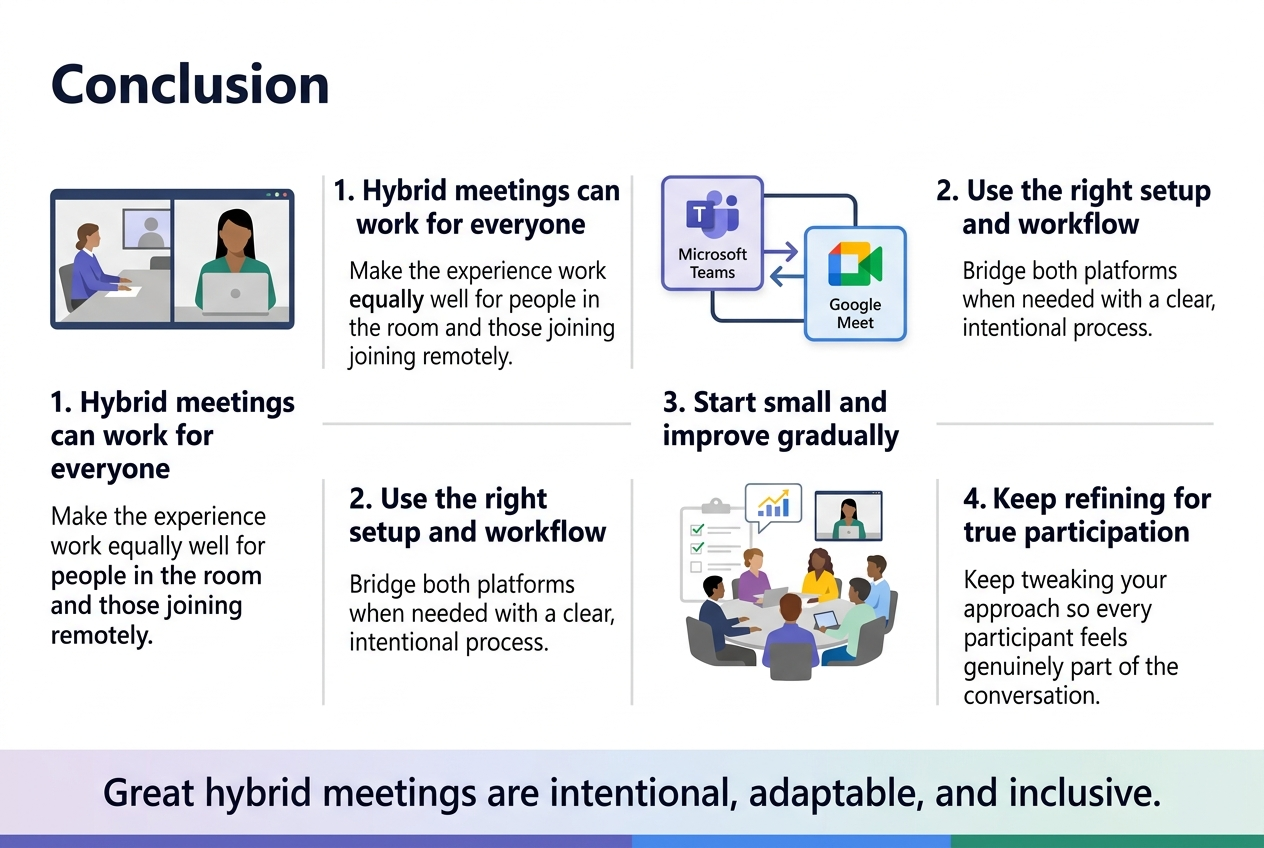
Hybrid meetings don’t have to be the chaotic, frustrating experience so many teams dread. With the right setup in Microsoft Teams or Google Meet, and a clear workflow that brings both platforms together, you can create meetings where remote and in-room participants feel equally included and heard. From choosing the right equipment to tracking engagement metrics, every step you take toward a more intentional hybrid meeting culture pays off in better collaboration and fewer “can you hear me?” moments.
Start small if you need to — pick one or two best practices from this guide and test them with your team this week. Notice what works, tweak what doesn’t, and keep measuring your progress. The teams that get hybrid meetings right aren’t using any secret formula; they’re just being consistent, staying flexible, and keeping the human side of collaboration front and center.